


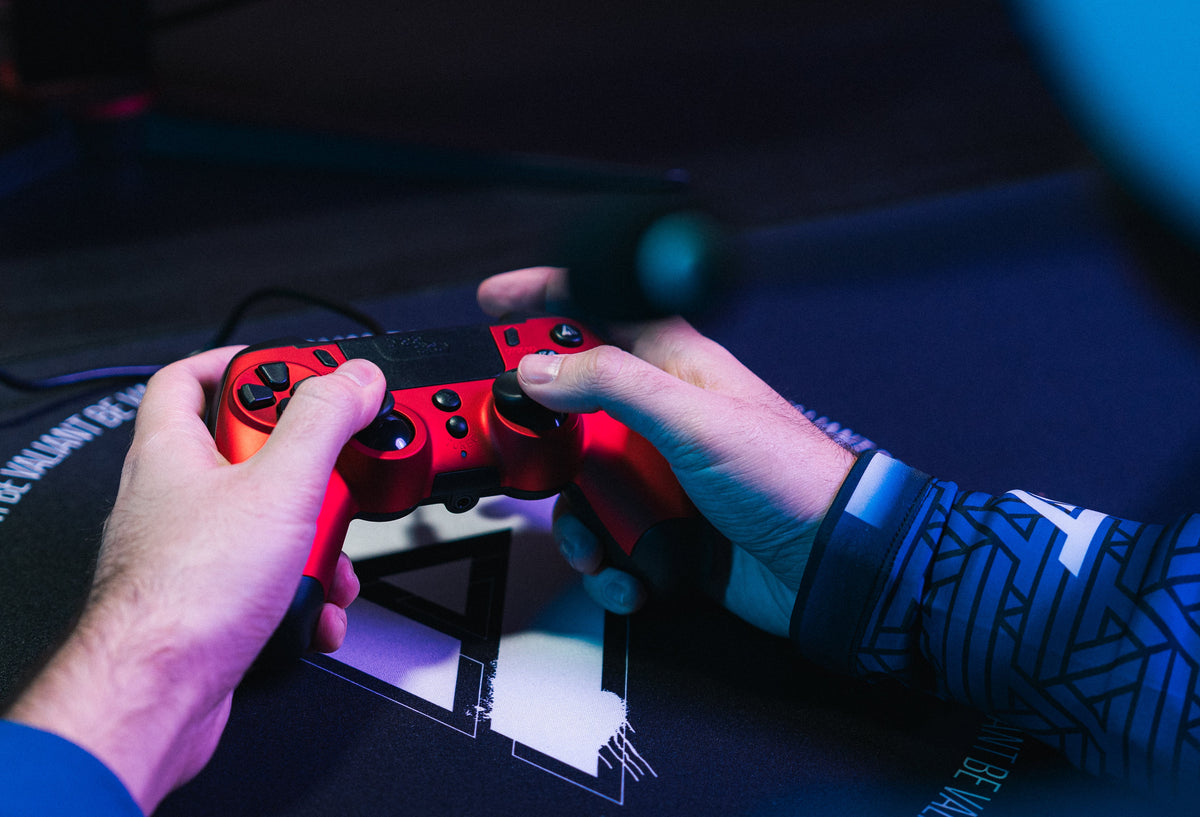
You plug in your controller, Windows detects it, and the lights come on. Yet, once your game is launched, you are unable to move your character. The buttons do not respond, and the joysticks seem inactive.
A controller that is recognized but unusable is not necessarily defective. The problem often stems from the connection mode, game settings, or software incompatibility. Here is how to identify the cause and regain control of your game.
Why is your controller detected but not working?
When a computer recognizes a controller, it means it is communicating with the device. This does not guarantee that the game will know how to interpret its commands.
Several situations can explain the problem.
An incompatible control mode. On PC, controllers can use different protocols, notably XInput or DirectInput. Some games require a specific format to correctly interpret the buttons.
A misconfigured game. The controller works under Windows, but the game is still configured for the keyboard and mouse.
A connection problem. A USB cable used solely for charging, a poorly connected receiver, or an incomplete Bluetooth pairing can prevent the commands from working.
Limited compatibility. A controller compatible with your computer is not necessarily compatible with all installed games.
How to make a recognized but unusable controller work?
Before considering a replacement, five checks can generally help pinpoint the origin of the problem.
1. Check the connection
Unplug your controller, then reconnect it directly to another USB port. If you are using Bluetooth, remove the existing pairing before starting over.
For a controller equipped with a 2.4 GHz wireless receiver, check that the dongle is properly plugged in.
2. Test your controller in Windows
Windows has a tool that allows you to check the commands independently of the game.
-
Press Windows + R.
-
Type
joy.cpl, then press Enter. -
Select your controller and open its properties.
-
In the test tab, move the joysticks and press the triggers and buttons.
If the commands respond normally, look toward the game or its configuration instead. If no command responds, check the drivers, connection, or hardware.
3. Check your controller mode
Some models offer several modes depending on the platform used.
On PC, a game may expect an XInput controller while your device is operating in another mode.
Consult your model's manual to find the available modes and the switching procedure. The setting varies from one controller to another.
4. Configure Steam Input
Your controller works in Windows, but remains inactive in a Steam game?
Open Steam > Settings > Controller to check its detection.
Then, go to the properties of the game concerned, in the "Controller" section. You can try enabling or disabling Steam Input depending on the game's needs.
Steam Input can make using certain controllers easier. However, not all Steam games support controllers.
5. Check for updates and the console
On Switch or Switch 2, open the "Controllers" menu, then "Change style/order" to check the association of your device.
On PC as on console, also look for a possible firmware update from the manufacturer.
If your controller still does not respond, test it on another compatible game before concluding it is broken.
On which games can a controller work?
The behavior depends on the game, its version, and the platform.
Fortnite: the game supports controllers on PC and console. Its settings allow you to choose a suitable control configuration. However, a third-party controller must be compatible with the device used.
Rocket League: controller commands are particularly suited for steering, gradual acceleration, and quick movements. If your controller does not respond on PC, check the connection as well as any game compatibility issues.
Minecraft: pay attention to the edition used! Minecraft Bedrock supports controllers natively. Minecraft Java does not offer this native support, which explains why a controller can work in one edition without responding in the other.
Mario Kart on Nintendo Switch: a controller compatible with the console can offer a comfortable grip for steering your kart. However, check the control modes supported by the game.
The benefit of a controller remains very concrete: regain analog movements, keep the controls within reach of your fingers, and adapt your grip to the pace of the game.
Discover LEXIP gaming controllers
And with a LEXIP controller?
At LEXIP, we pay special attention to the relationship between the gesture and the command.
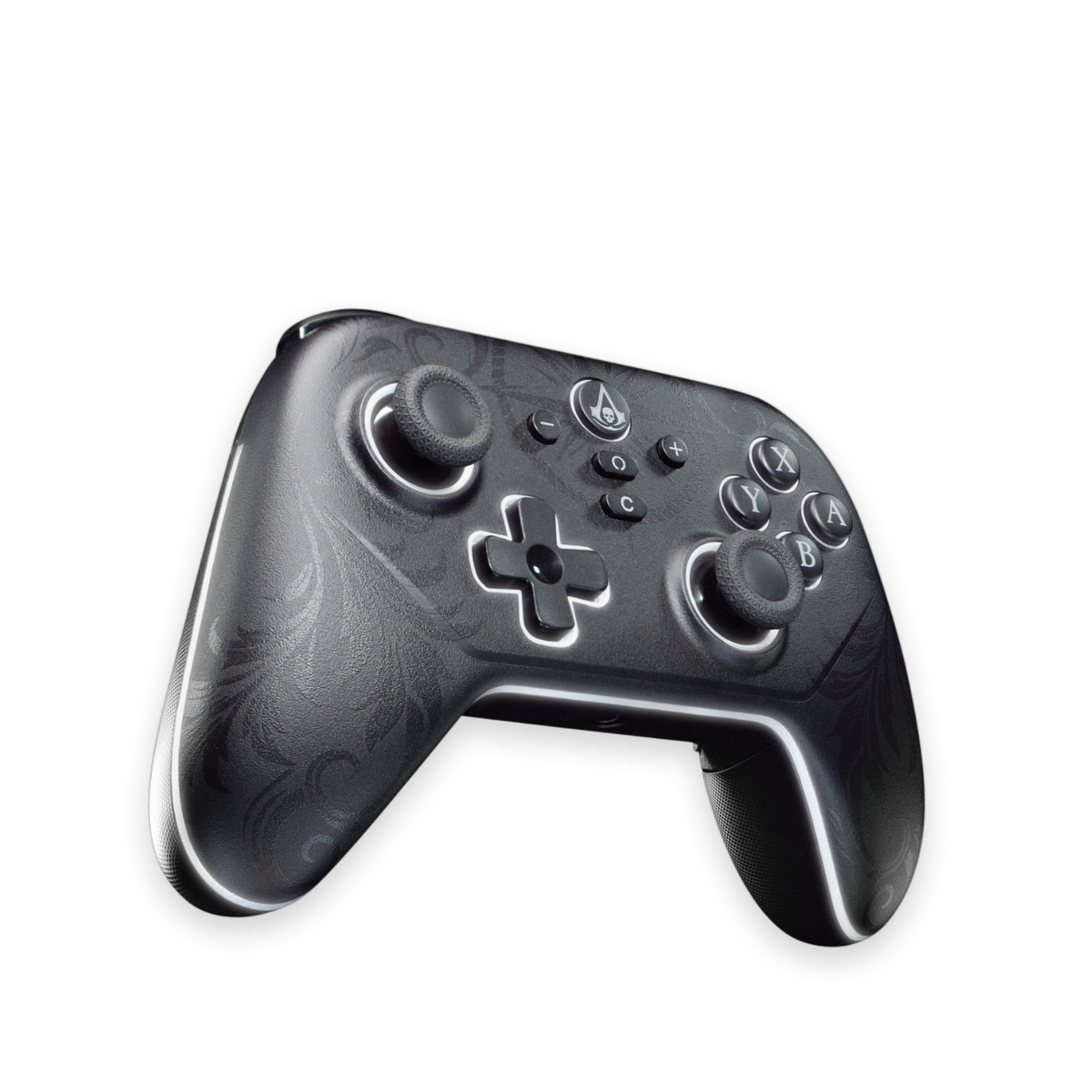
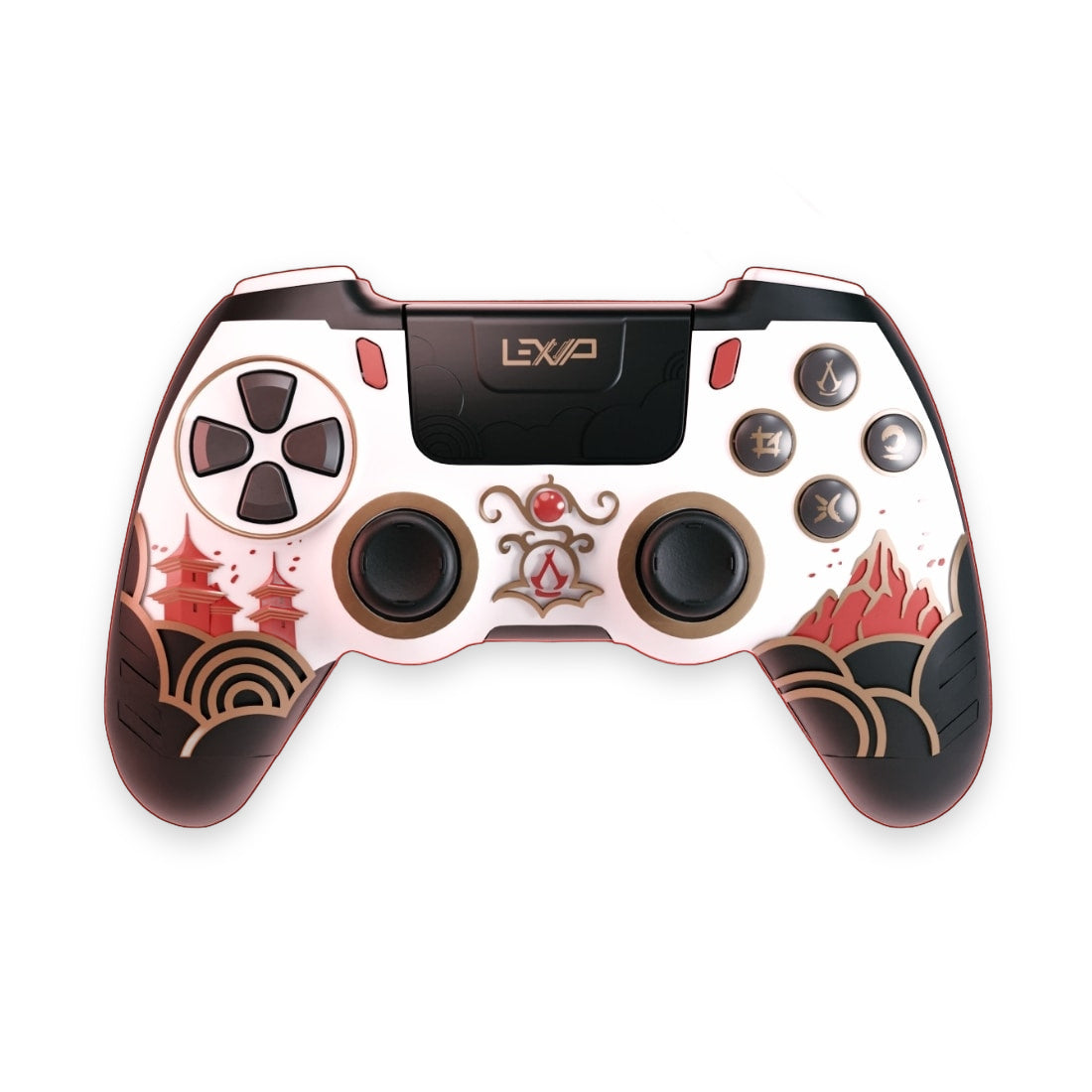
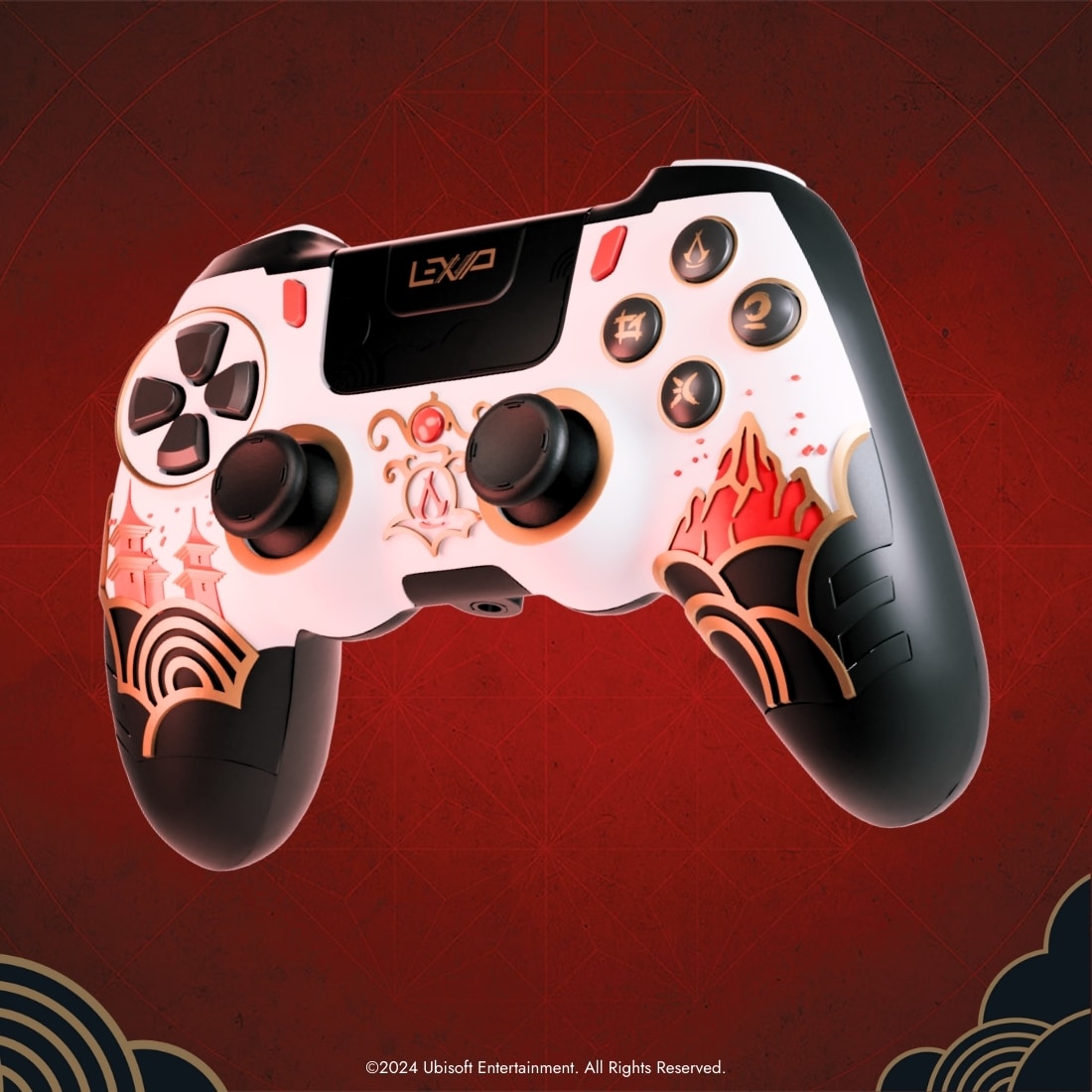
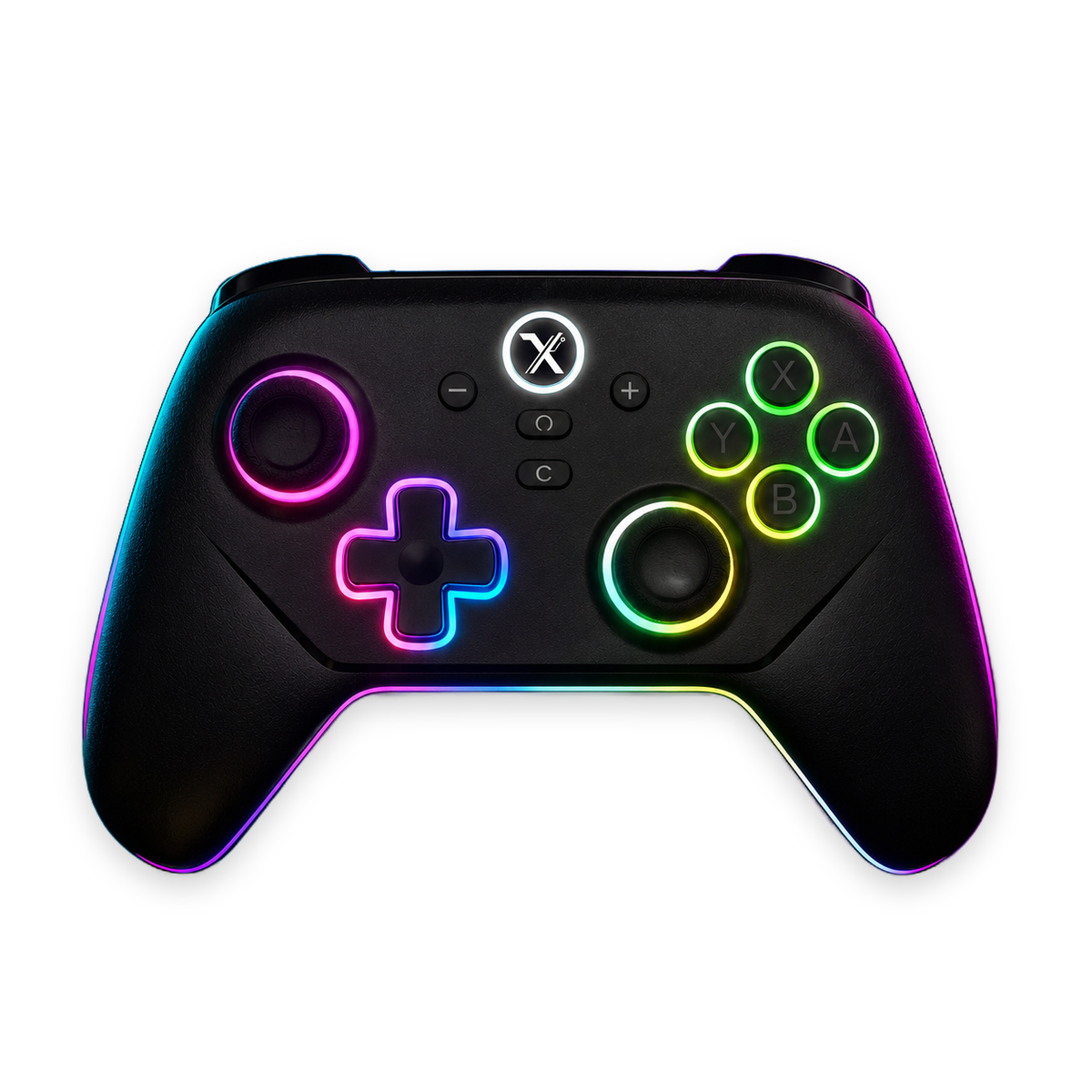
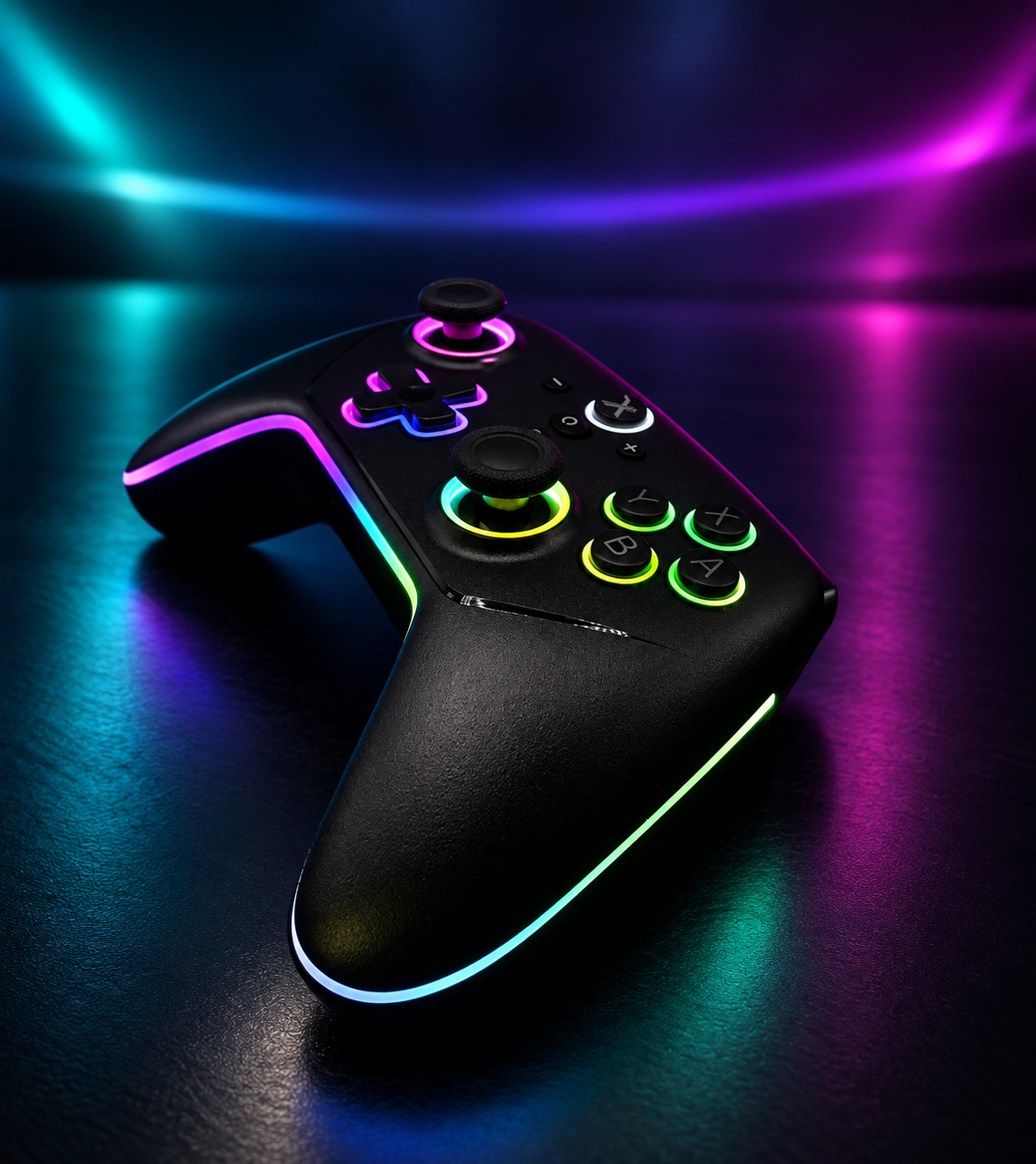
Take the example of our Advanced Pro Controller, compatible with PC, Nintendo Switch, and Nintendo Switch 2.
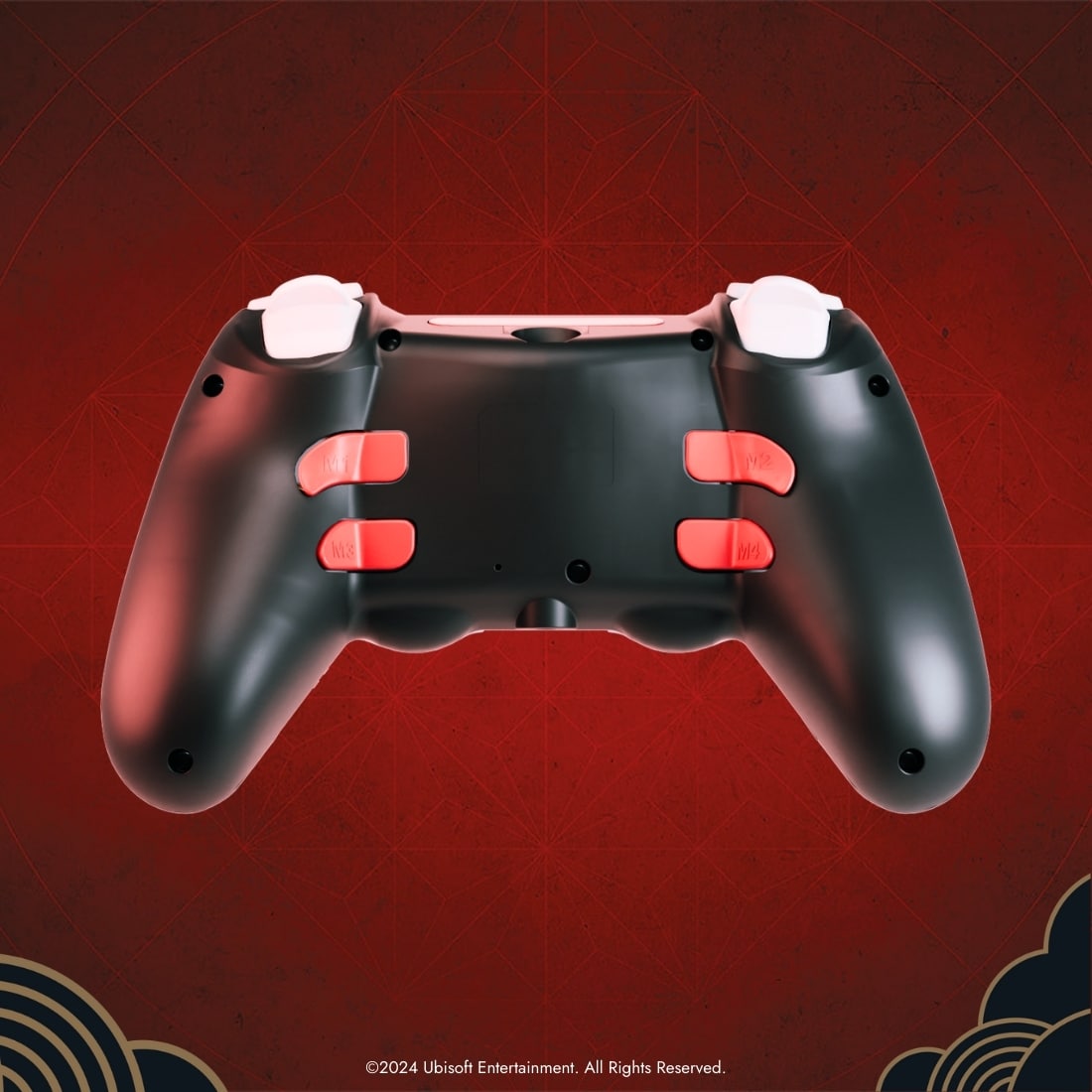
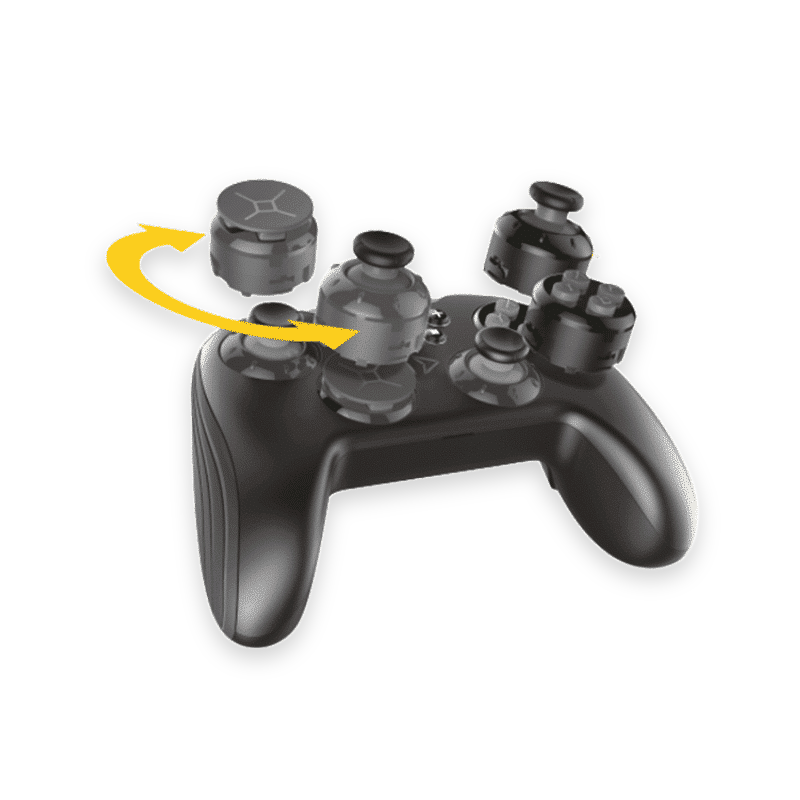
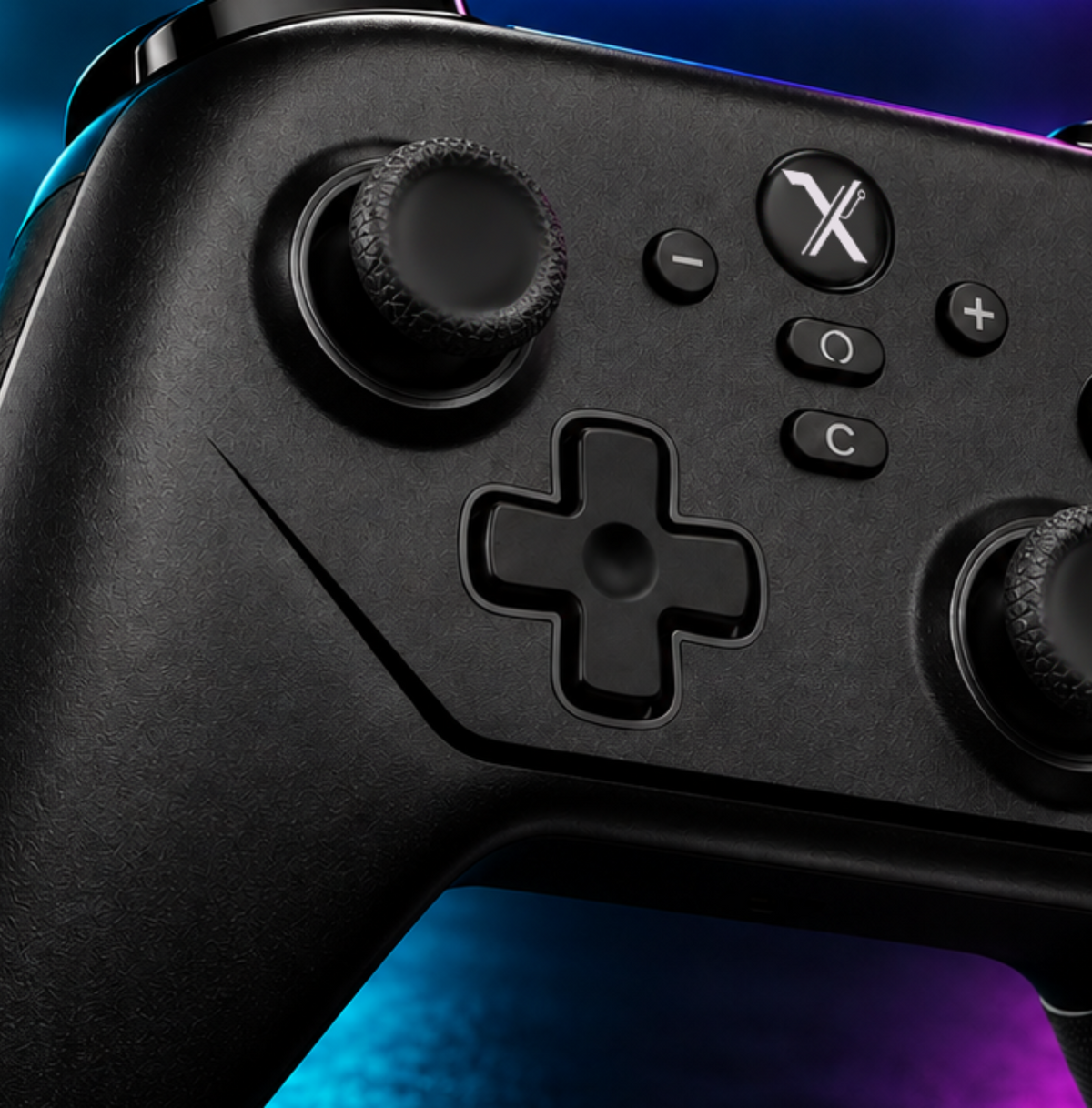
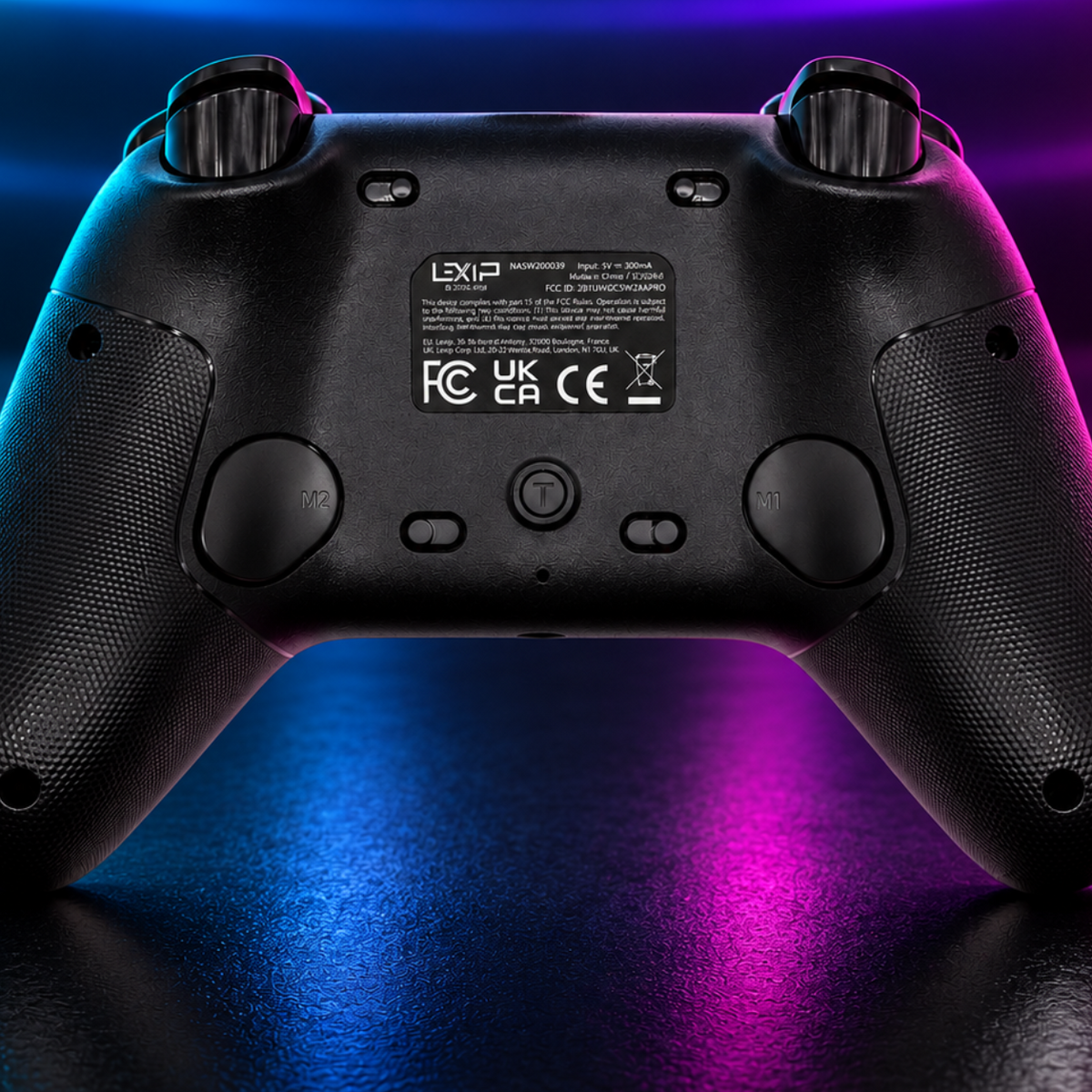
It offers a 2.4 GHz wireless connection via a provided USB-C dongle, Hall Effect joysticks, two customizable M1/M2 back buttons, as well as adjustable-travel triggers.
In a racing game, a progressive trigger can make it easier to regulate acceleration. In an action game, a shorter travel allows you to prioritize a quick press.
These features enrich the control possibilities without removing the compatibility requirements specific to each game.
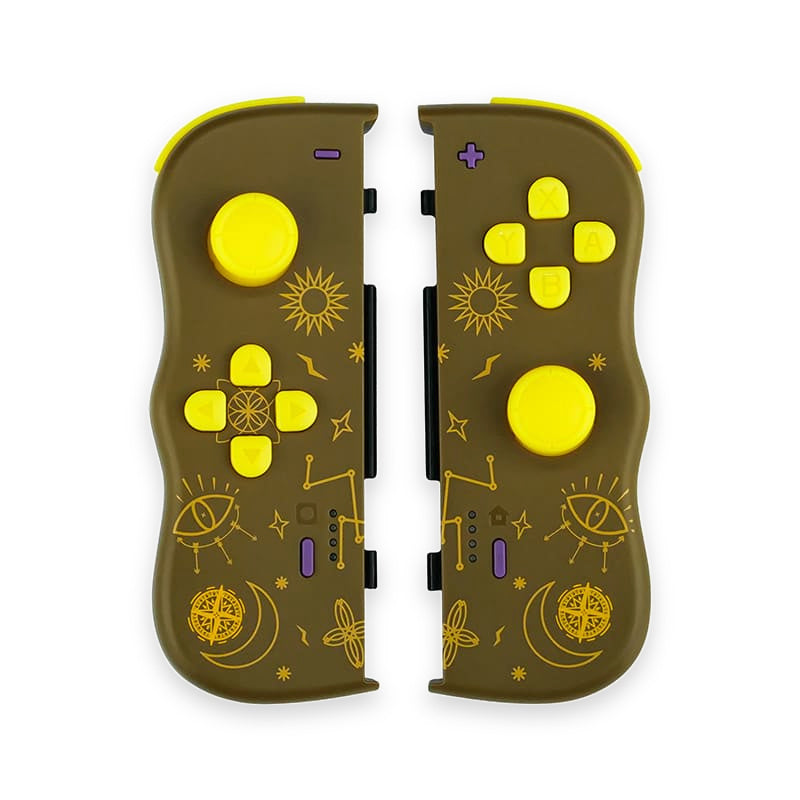
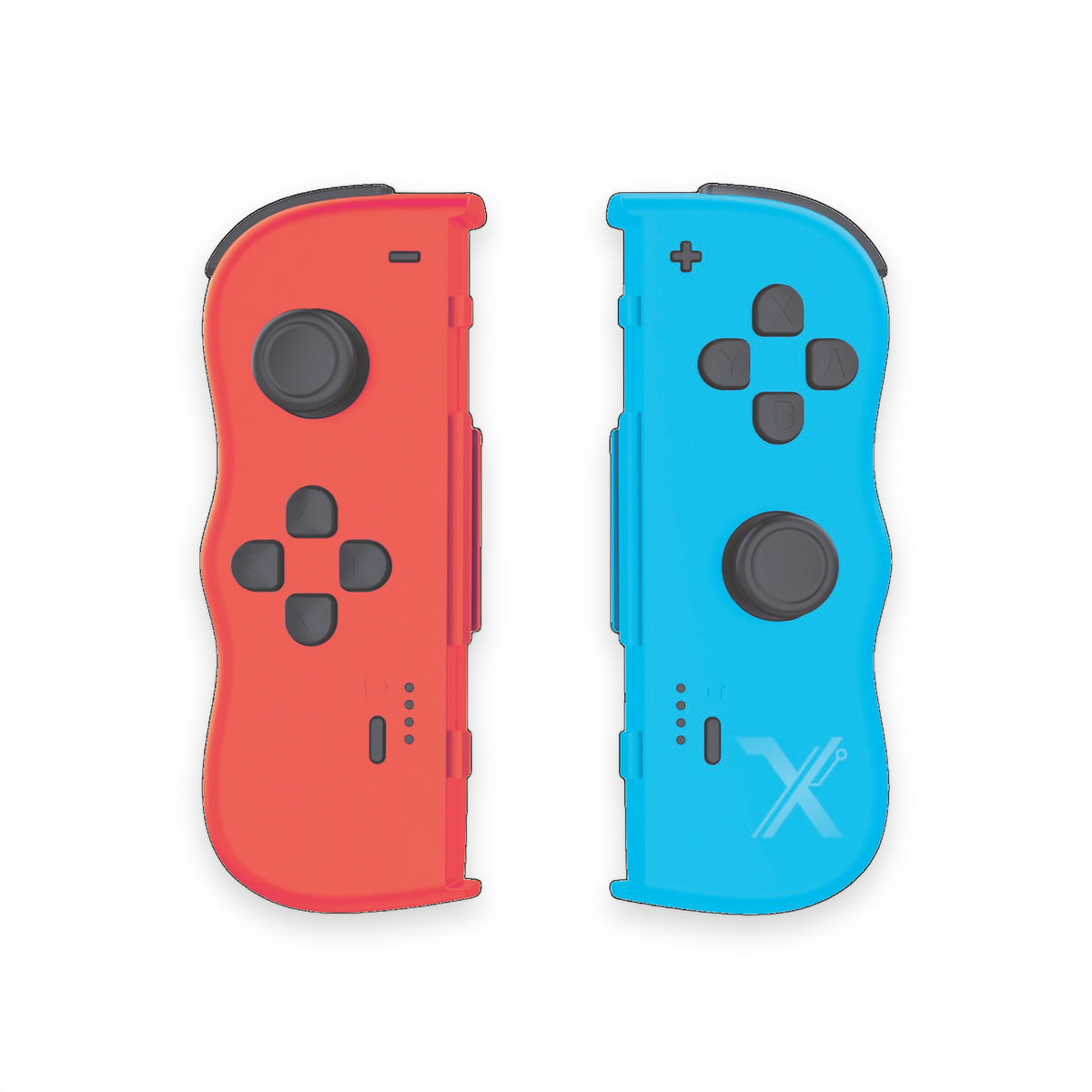
For players on Switch 2, the LEXIP TwinPads are another option. They work wirelessly at a distance from the console, but do not attach directly to it.
Discover the LEXIP Advanced Pro Controller
When should you replace your controller?
If the buttons do not react on any compatible device, even after checking the connection and updates, a hardware failure becomes more likely.
However, if your controller works in Windows or on other games, replacing it will not necessarily solve the problem.
Before any purchase, check the officially supported platforms, the connection type, and any game-related restrictions.
You already use a LEXIP controller and are encountering a difficulty? Our team can guide you toward the checks suited to your model.








Partager: