


Opening an application, changing weapons, launching a shortcut, or returning to the previous tab without moving your hand to the keyboard: that is the whole point of remapping mouse buttons. By assigning a specific function to each command, you can adapt your mouse to the way you play, work, or create.
At LEXIP, this logic aligns with a simple idea: reducing the distance between intention and action. We specifically seek to limit friction in computer interaction to gain fluidity and control.
What is mouse button remapping?
Remapping involves changing the function associated with a mouse button.
For example, the side button usually used to return to the previous page can become an in-game command, a keyboard shortcut in software, or a repetitive action used at work.
Depending on the mouse and its software, it is possible to assign the following to buttons:
-
a keyboard key
-
a combination of keys
-
a multimedia command
-
a navigation function
-
a macro
-
an action specific to a software or game
The goal is therefore not just to have more buttons. It is primarily about placing the right commands under the right fingers.
Why remap your mouse buttons?
A standard mouse already responds very well to essential actions. Remapping becomes interesting when a command regularly forces you to move your hand or interrupt your movement.
Imagine you use the Ctrl + Z shortcut dozens of times a day. Placing it under your thumb may seem like a detail. Yet, repeated all day, this small change truly alters how you interact with your software.
It is this usage-based logic that LEXIP aims to highlight: control, fluidity, freedom, and precision rather than multiplying functions for their own sake.
In-game: bringing important commands closer
In a game, certain actions must remain immediately accessible.
Depending on the title, you can, for example, assign a side button to:
-
a skill
-
a quick item
-
a secondary attack
-
weapon switching
-
push-to-talk
-
opening a map
The right setting depends heavily on the game. A command used every thirty seconds generally deserves a place under the thumb more than an action activated twice per match.
The idea is not to transfer the entire keyboard to the mouse. Instead, look for the commands that break your natural movement.
At work: reducing trips to the keyboard
Remapping is not just for gaming.
In a browser, two buttons can be used to switch between tabs. In a spreadsheet, they can trigger copy, paste, or undo. In editing software, they can launch shortcuts used dozens of times per session.
For users who alternate between work and gaming on the same computer, custom profiles really come into their own.
In creation: keeping commands within your movement
When software requires a sequence of shortcuts, constantly moving your hand between the mouse and the keyboard can break your work rhythm.
In creative software, a few well-configured buttons can be used to undo an action, change a tool, or call up a frequent command.
The principle remains the same: identify repetitive movements before trying to automate them.
Which buttons should be remapped first?
Start by observing your usage for a few minutes.
Which keys do you constantly look for? Which command forces your hand to leave the mouse? Which action do you use so often that it becomes almost automatic?
You can then apply a simple rule: the more frequent a command is, the easier it should be to reach.
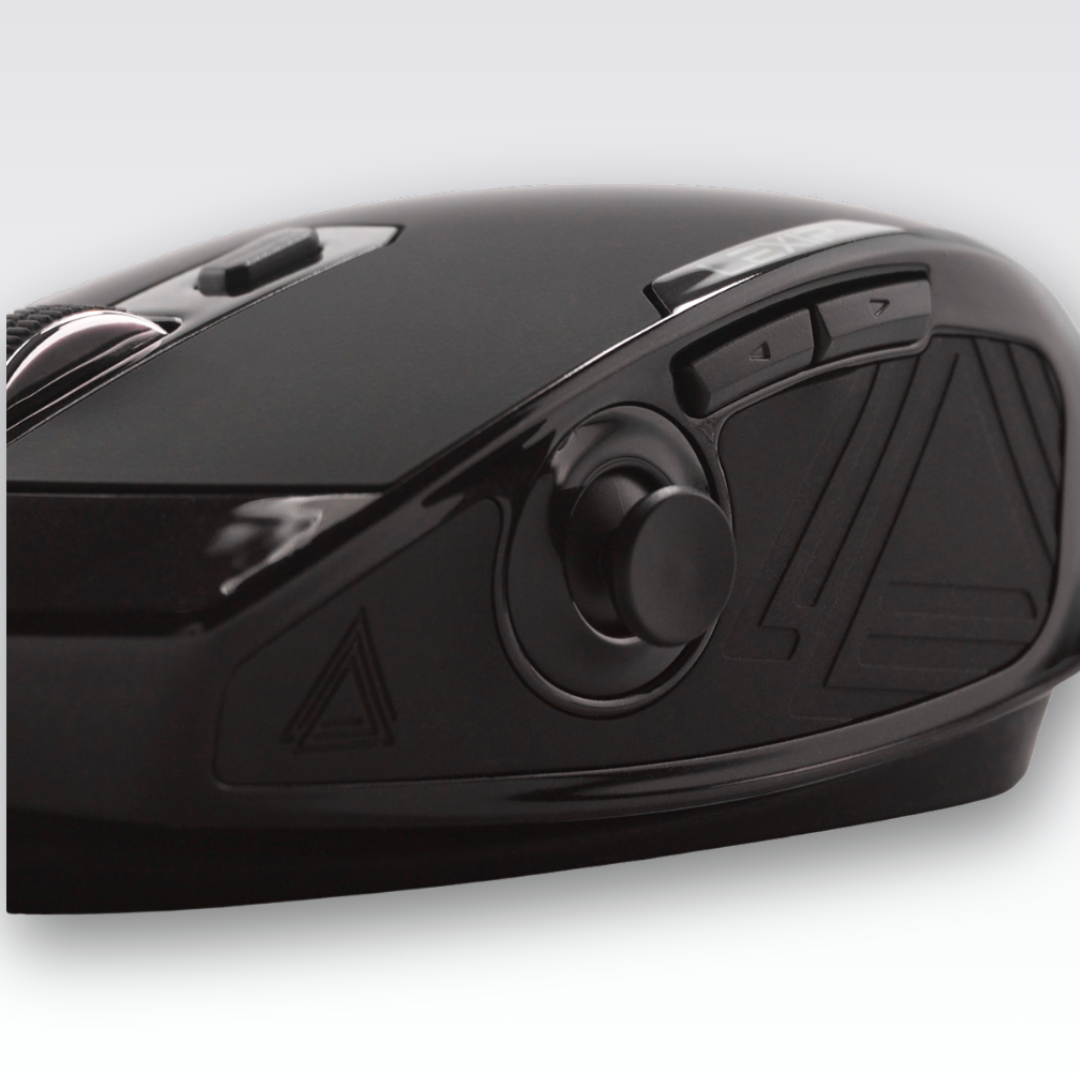
The thumb is particularly interesting since it can access several commands without changing the main position of the hand.
However, avoid filling every available button immediately. A complex configuration requires a learning period. Two or three truly useful shortcuts are often more effective than a dozen functions that are difficult to memorize.
How to remap your mouse buttons?
The exact procedure depends on the manufacturer, but the principle is generally similar.
1. Install the configuration software
Some mice work immediately for their basic functions. Advanced settings are then handled through the manufacturer's software.
In the case of the LEXIP NP93, the main functions are available as soon as it is plugged in. The Lexip Control Software (LCS) is required to program buttons, change DPI, adjust RGB, or configure the joystick.

2. Choose the button to modify
Open the configuration interface and select the relevant button.

Preferably, start with a secondary command. Modifying the left or right click immediately can make navigation unnecessarily complicated.
3. Assign the new function
Then associate the desired shortcut with the button.
For a first profile, choose easy-to-remember commands: back, forward, copy, paste, undo, or a recurring action in your game.
4. Test the setting in a real-life situation
A configuration that makes sense on paper does not always work under your fingers.
Use your mouse normally for a few minutes. If you are still looking for the command or regularly trigger the wrong button, change its location.
A good remapping is one that eventually becomes natural.
5. Create multiple profiles if necessary
The same buttons do not need to have the same function everywhere.
One profile can be dedicated to gaming while another corresponds to your browser or creative software.
This way, you avoid looking for a universal configuration that works only adequately in all situations.
If you need additional information about LCS, find the associated tutorials here
Placing more commands under the thumb
At LEXIP, customization is not limited to changing the function of two side buttons.
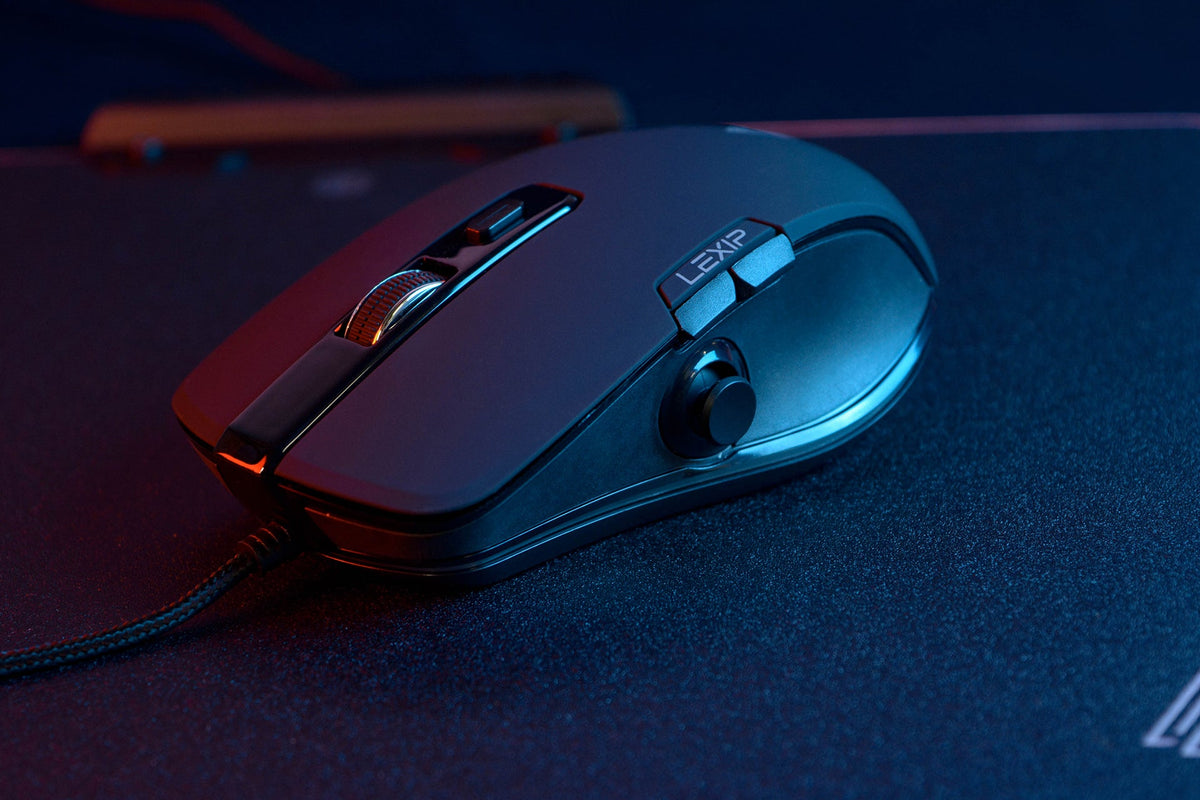
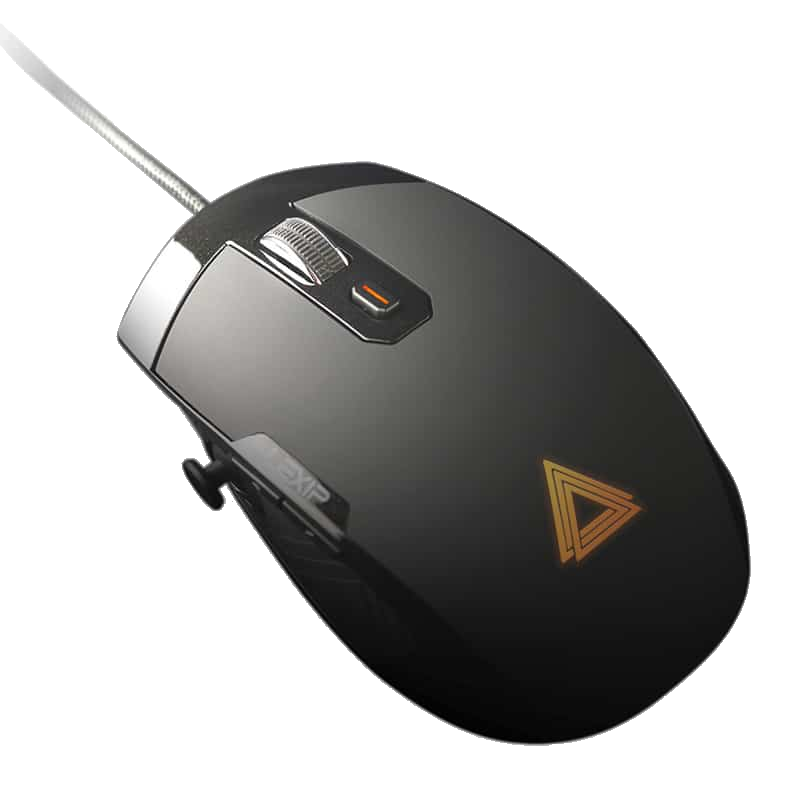
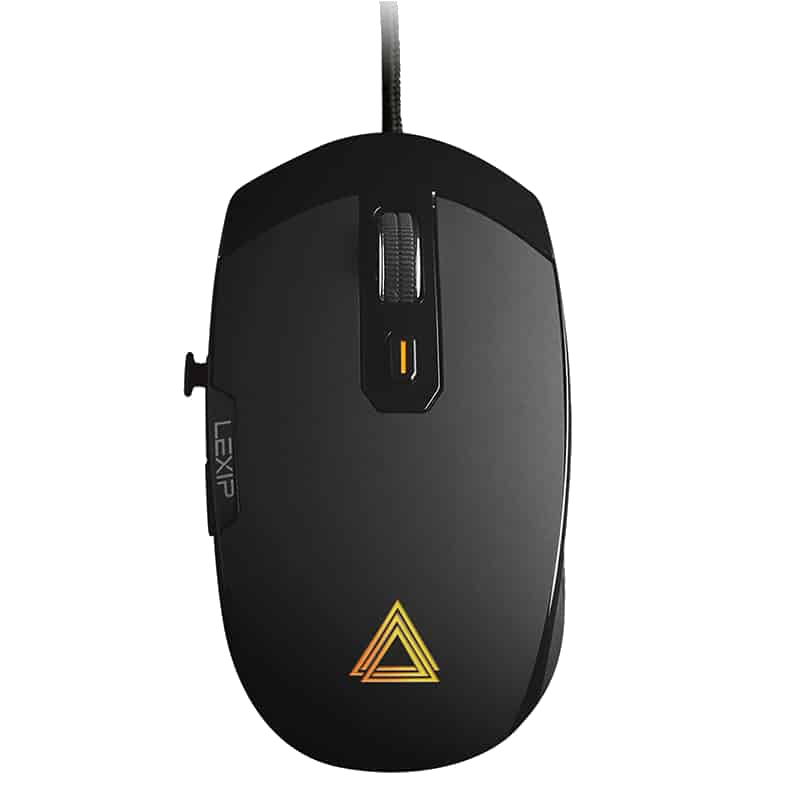
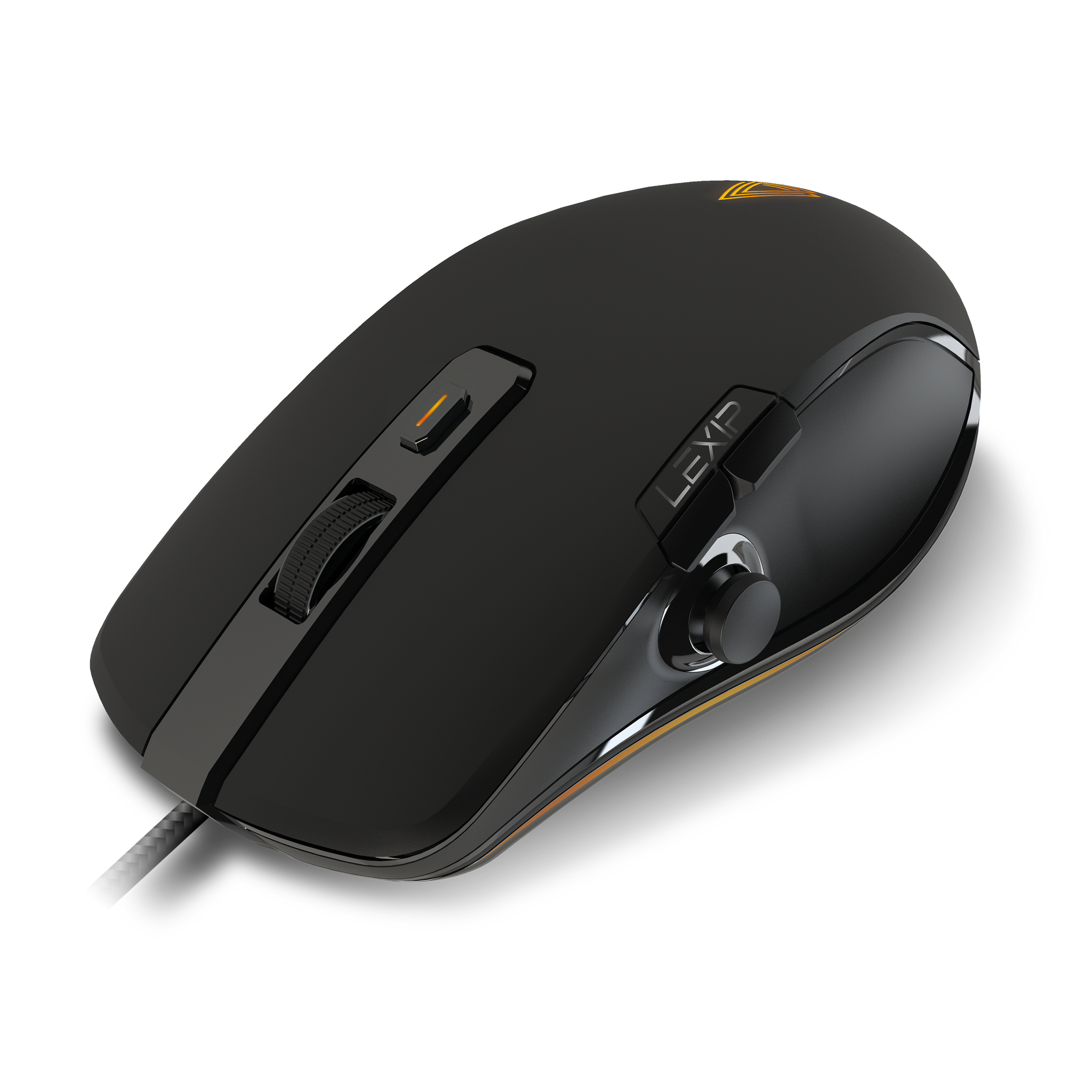
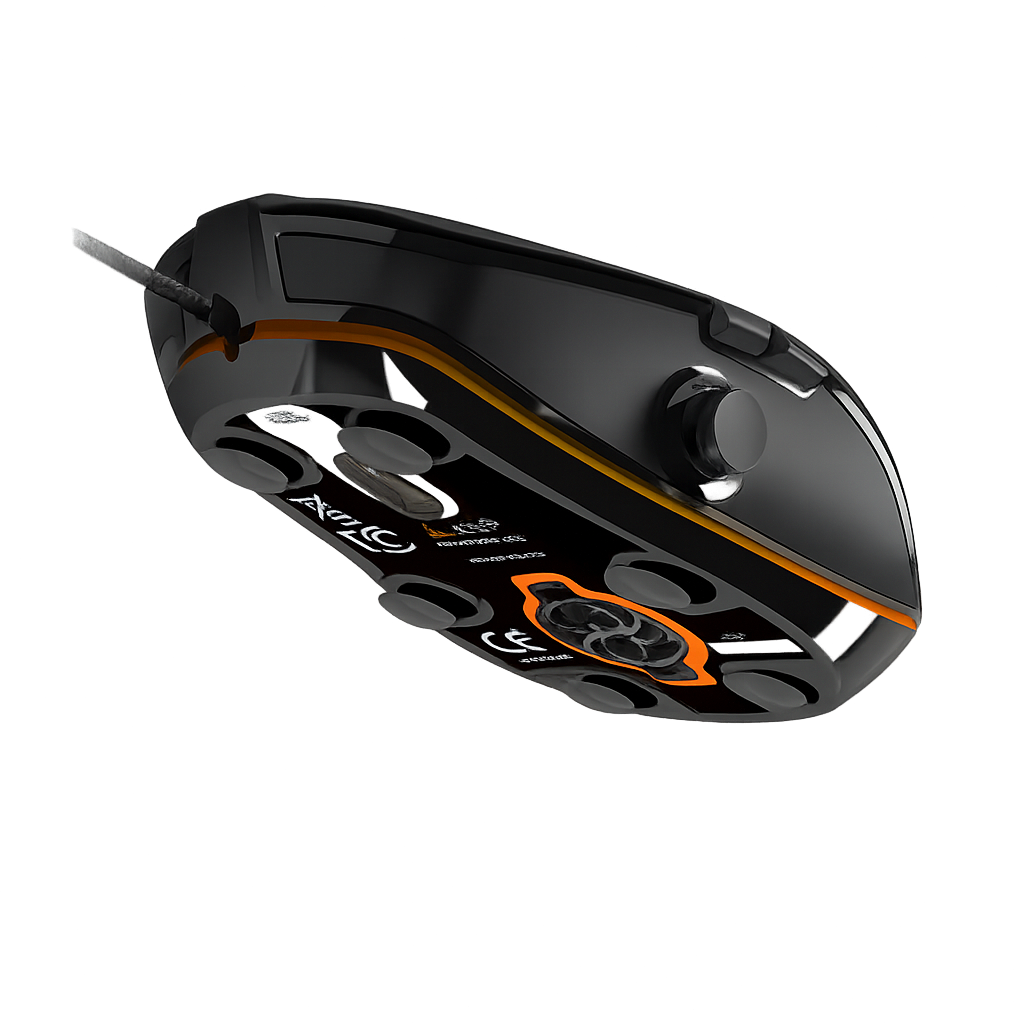
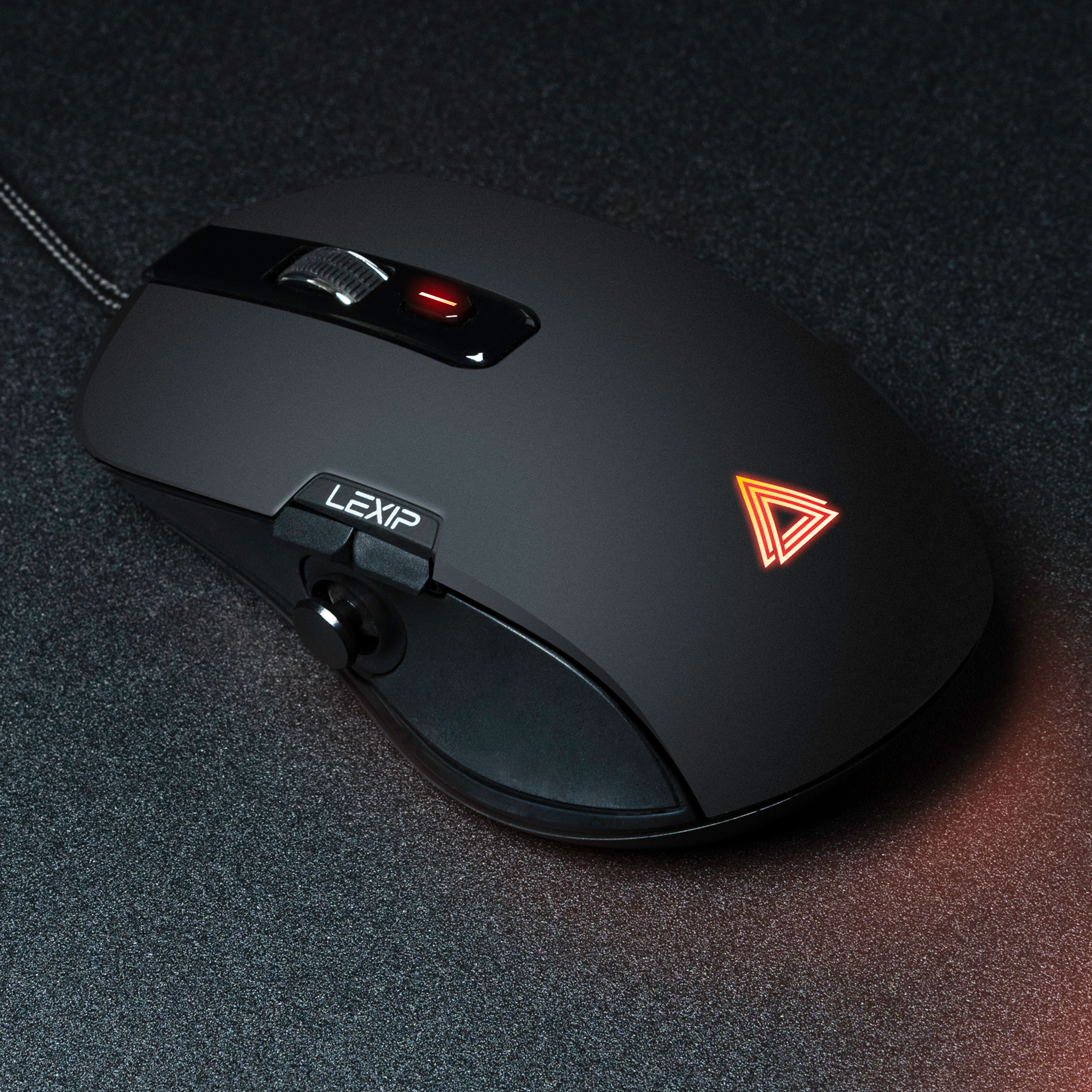
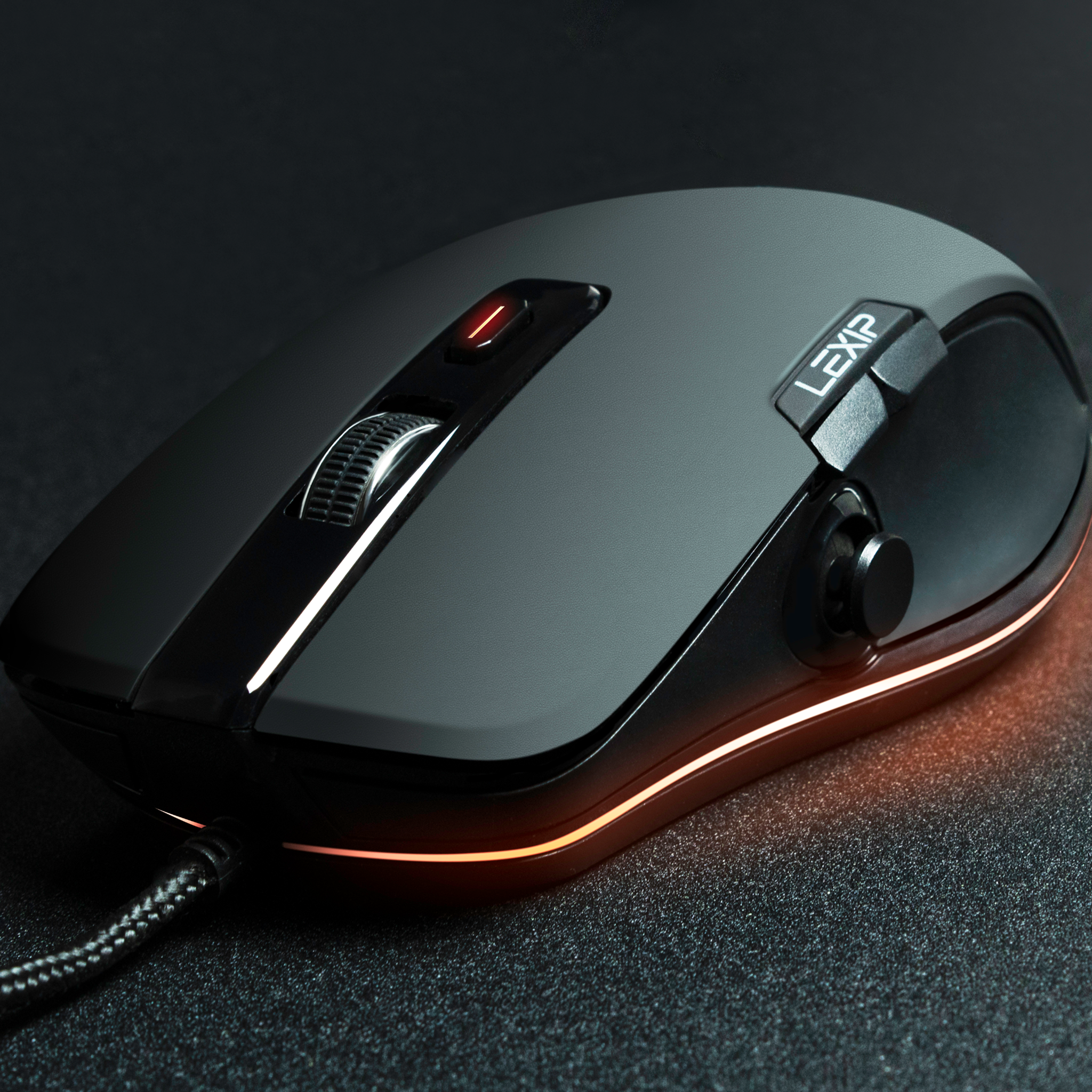
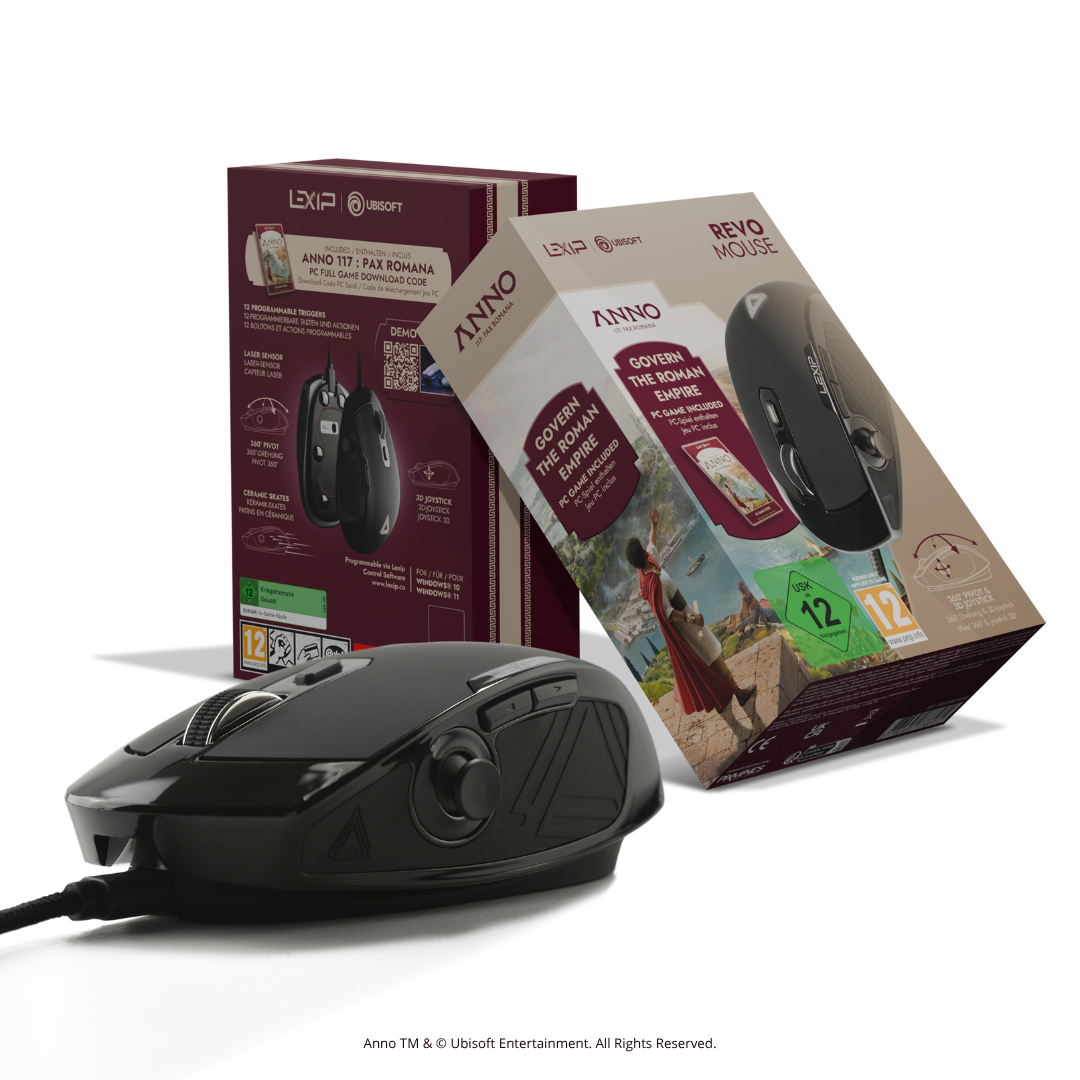
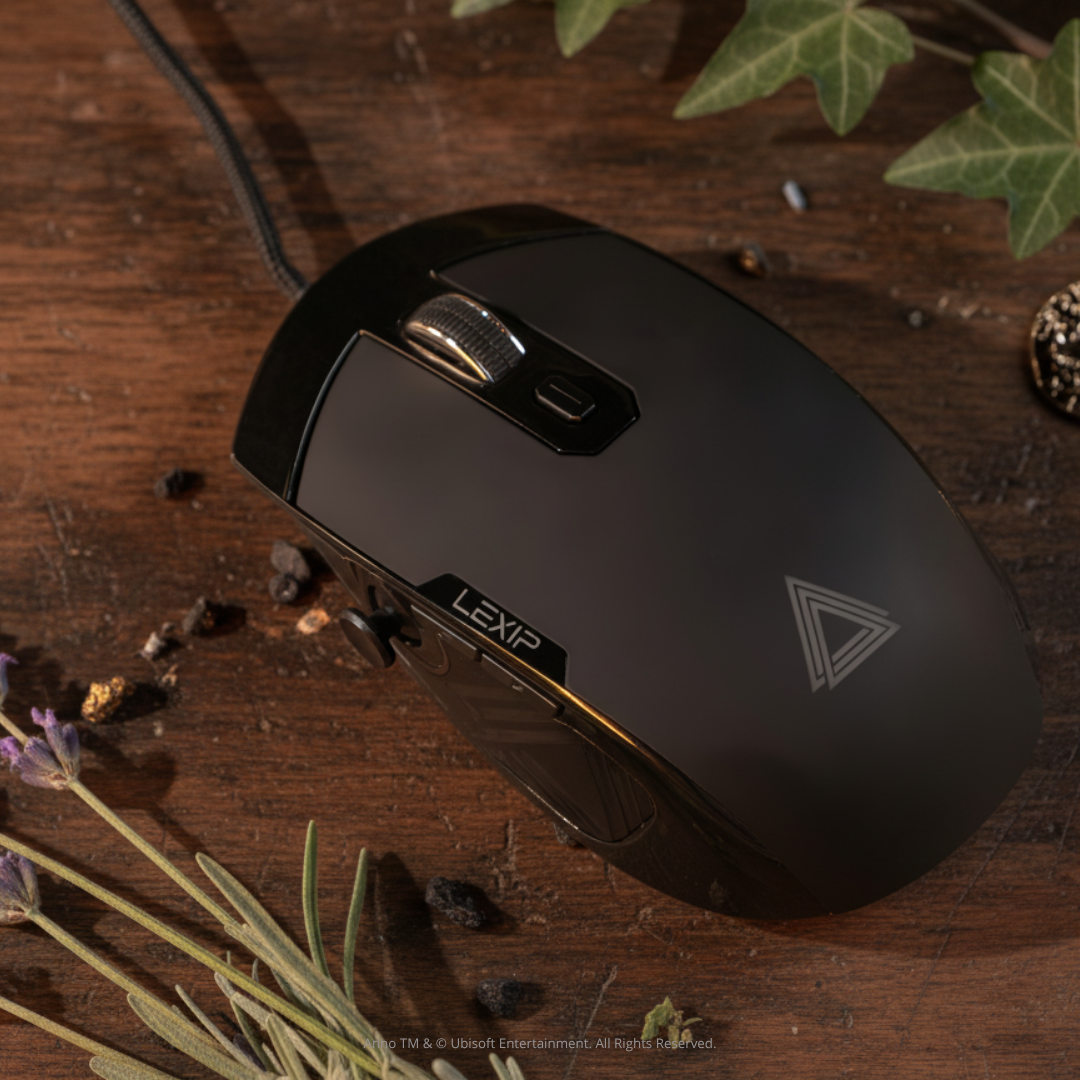
The reflection is more about how to bring certain commands closer to the hand. The NP93, for example, is designed around 12 customizable commands and a thumb joystick. The LEXIP product memo presents this approach as a way to navigate without losing your grip and then customize commands according to usage. This opens up several possibilities.
For gaming, a recurring command can remain directly accessible under the thumb.
For work, certain shortcuts can replace movements to the keyboard.
For creation, a profile can gather functions frequently used in a software.
It is not the number of commands alone that makes the difference. It is the way each one finds its place in your movement.
Discover the LEXIP NP93 and its customizable commands.
Should you remap all your mouse buttons?
No. A good configuration is not one that uses all available possibilities. It is one that meets your habits.
Start with two or three commands. Use them for a few days. Then add a new function only if you identify a specific friction.
This progression also allows you to build muscle memory. Gradually, you no longer need to think about the button's location: the movement comes directly.
Which remapping should you choose to start?
You can start with a very simple profile.
For work:
|
Button |
Example function |
|
Side button 1 |
Back |
|
Side button 2 |
Forward |
|
Additional button |
Copy |
|
Additional button |
Paste |
|
Thumb command |
Scroll or frequent shortcut |
For gaming, replace these shortcuts with the commands you use most often.
For creation, look at the keyboard shortcuts that constantly recur in your software and then gradually move some of them to the mouse.
Remapping becomes truly interesting when it starts from your usage rather than from a configuration copied from someone else's.
FAQ on mouse button remapping
Can all mouse buttons be remapped?
Not necessarily. Possibilities depend on the model and the software provided by the manufacturer. Programmable mice generally offer more options.
Can a keyboard shortcut be assigned to a mouse button?
Yes, on many programmable mice. It is often possible to associate a key or a combination of keys with a button.
Is remapping useful outside of gaming?
Yes. Shortcuts can be used for office work, web browsing, 3D creation, editing, or other professional software.
Is it necessary to install LCS to customize a LEXIP mouse?
It depends on the model and the desired function. For the NP93, LCS is necessary to program buttons as well as to access several advanced settings.
How many buttons should be programmed?
There is no ideal number. Start with the two or three commands that save you the most movement, then complete your profile if necessary.
A good configuration starts with your movement
Remapping a mouse is not about accumulating shortcuts. It is about looking at how you actually use your computer and then bringing the commands you need closer to your hand.
A well-placed button can avoid a trip to the keyboard. Several well-thought-out commands can gradually transform the way you play, work, or create.
At LEXIP, this approach aligns directly with our philosophy: augmenting movement without complicating it, with technology that adapts to usage rather than the other way around.
Discover LEXIP programmable mice








Partager: